Visual Node-Based Workflow System
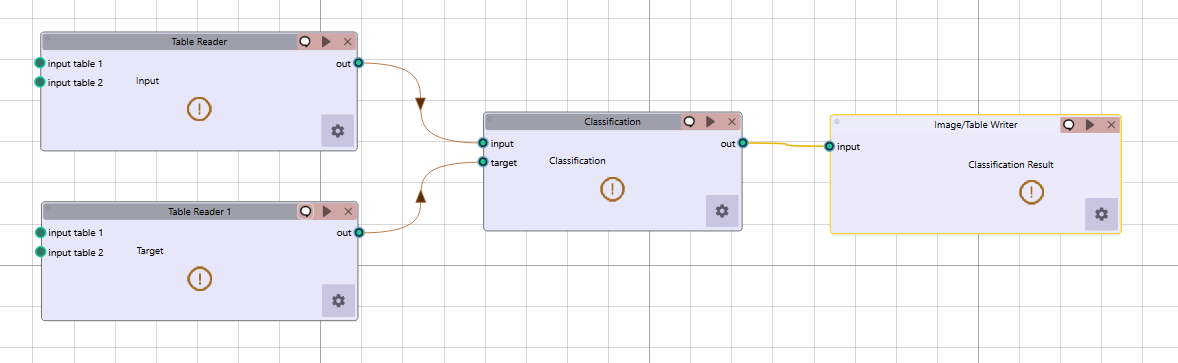
Radiuma uses a visual programming approach where tools are represented as nodes that can be connected to create complete data processing pipelines. This intuitive interface allows users with minimal programming experience to build sophisticated workflows.
Creating Workflows
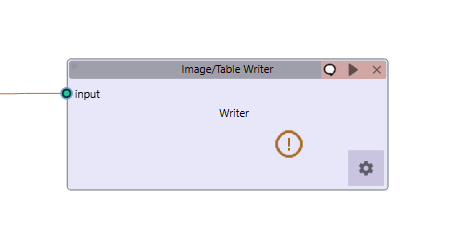
Adding Tools: Double-click on a tool from the tool palette to add it to the workspace
Configuring Tools: Double-click on a tool node to open its configuration dialog
Connecting Tools: Click and drag from an output port to an input port to create connections
Running Workflows: Click the “Run” button on a node to execute it and all its prerequisite nodes
Stopping Execution: Click the “Stop” button on a running node or use the global “Stop Workflow” button in the log bar to halt execution
Multi-Tab Workflow Support

Radiuma allows you to work with multiple workflows simultaneously through its tab-based interface:
Creating New Tabs: Click the “+” button on the tab bar or use the context menu to add a new workflow tab
Renaming Tabs: Right-click on a tab and select “Rename” to give your workflow a descriptive name
Tab Management: Each tab maintains its own independent workflow state and execution
Importing Workflows: When you import a saved workflow, it opens in a new tab automatically
Drag and Drop: You can drag .radioma files directly onto the application to open them in new tabs
Tool Compatibility
Each tool explicitly defines which other tools can connect to its inputs and outputs, ensuring that only valid connections can be made:
Image Reader: Outputs to Image Convertor, Filter, Fusion, and Registration tools
RT Struct Reader: Outputs to Radiomic Feature Generator and Image Writer tools
Image Filter: Takes image input, outputs to multiple imaging tools
Radiomic Feature Generator: Takes image and mask inputs, outputs to data analysis tools
Classification/Regression/Clustering: Take preprocessed data as input, connect to visualization
Example Workflows
Basic Radiomics Analysis Pipeline:
Image Reader → Load medical images
RT Struct Reader → Load region of interest segmentations
Radiomic Feature Generator → Extract quantitative features
Preprocessing → Prepare features for analysis
Classification → Analyze features for diagnostic/prognostic models
Image Processing Pipeline:
Image Reader → Load reference image
Image Reader → Load secondary image
Image Registration → Align images spatially
Image Fusion → Combine aligned images
Image Filter → Enhance features of interest
Image Writer → Save processed results
Workflow Controls
Layout Management: Automatically arrange nodes with the “Align Tools” function
Tool Search: Quickly find tools using the search function (Tab key)
Copy/Paste: Duplicate node configurations to create similar processing steps
Save/Load: Save entire workflows and reload them for future use
- Workflow Stopping: Two ways to stop a running workflow:
Node-level Stop: Click the stop button on an individual running node
Global Stop: Use the “Stop Workflow” button in the log bar to terminate all running tasks
System Resource Management
Radiuma provides notifications when system resources are limited:
- Cache Warning (When temporary storage is low):
Temporary storage space (cache) is insufficient. Please choose a different location for storing temporary files, or split the data into smaller batches.
- Memory Warning (When system memory is low):
Your system is low on memory. Try closing unused programs to help the application run smoothly.
These warnings appear as notifications in the status bar and log panel when detected
Keyboard Shortcuts
Tab: Open tool search
Ctrl+C / Cmd+C: Copy selected nodes
Ctrl+V / Cmd+V: Paste nodes
Delete: Remove selected nodes
D: Lock/Unlock nodes